> ## Documentation Index
> Fetch the complete documentation index at: https://docs.screenpipe.com/llms.txt
> Use this file to discover all available pages before exploring further.
# Consultant time tracking
> Track consultant hours across calls, docs, code, and browsers with Screenpipe. Produce a reviewed client time report without invasive monitoring.
Use Screenpipe to reconstruct work across calls, documents, code, email, and browser research. The goal is a defensible draft report—not a surveillance score or an invoice sent without review.
## A good first pilot
For IT support, start with [remote-support job logs and billing reports](/remote-support-job-reports): ten copyable prompts, a sample service entry, and instructions for controlling scheduled reports.
| Scope | Recommendation |
| - | - |
| Person | One consultant on their own device |
| Work | One client or project |
| Duration | One to two weeks |
| Output | Date, active minutes, work blocks, deliverables, and uncertain time |
| Acceptance | Consultant reviews it; client agrees the level of detail is useful |
```mermaid theme={"system"}
flowchart TD
A["local screen and audio"] --> B["authoritative active time"]
A --> C["AI project labels"]
B --> D["draft client report"]
C --> D
D --> E["consultant review"]
E --> F["timesheet or invoice input"]
```
## Step by step
Define the project, working hours, excluded apps, retention period, and whether the client should receive narrative detail or only totals. Do not capture a client's device or employees without their authorization and a clear policy.
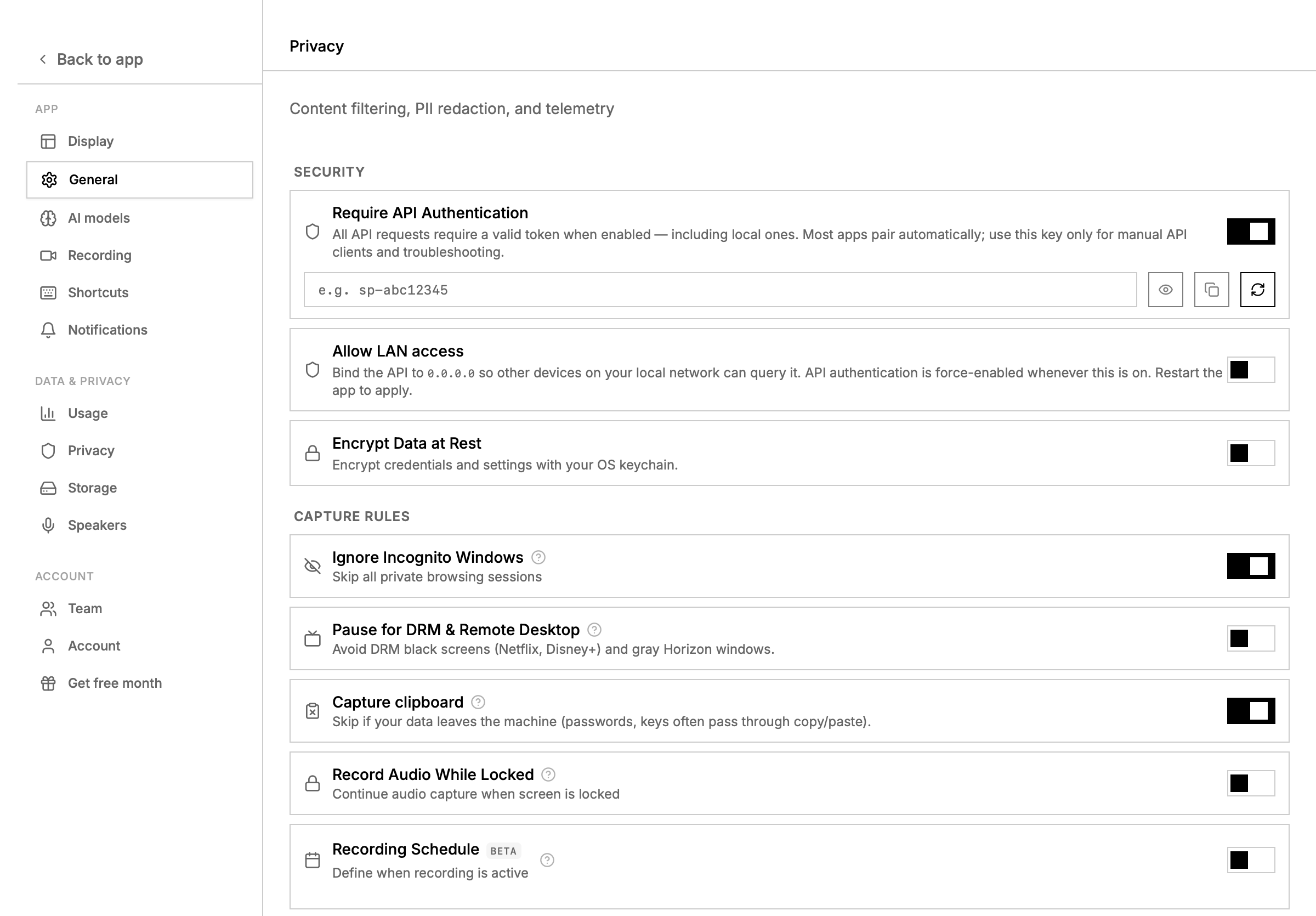
Open **Settings → Privacy**. Exclude password managers, personal messaging, banking, health, unrelated clients, and any confidential surface that is not needed for the report.
Record 15–30 minutes of representative work. Confirm the timeline contains the expected apps and that audio is captured only when needed.
Use `/activity-summary` for numeric totals. Let the model classify the resulting blocks by client or project, but never let it manufacture time from the number of frames or search results.
Search the same time range for project terms, document titles, meetings, and deliverables. Keep ambiguous blocks in an “unassigned” section instead of forcing a label.
Check totals against your calendar and known breaks. Remove unrelated detail, correct project labels, and mark estimates clearly.
Export the reviewed result to your normal timesheet or attach it to an invoice. Automate this handoff only after several accurate manual reports.
 ## API example
```bash theme={"system"}
export SCREENPIPE_API_KEY="$(npx -y screenpipe@latest auth token)"
curl -H "Authorization: Bearer $SCREENPIPE_API_KEY" \
"http://localhost:3030/activity-summary?start_time=4h+ago&end_time=now"
curl -H "Authorization: Bearer $SCREENPIPE_API_KEY" \
"http://localhost:3030/search?q=project-or-client-code&content_type=all&start_time=4h+ago&end_time=now&limit=50"
```
Relative ranges such as `4h ago` and `now` are convenient for a first test. Use ISO 8601 UTC timestamps when the report must match an exact calendar or billing window, and replace the project code with your own value.
## Build it without code
Go to **Scheduled tasks → My tasks** and scroll to **new scheduled task**.
Paste: “Create a manual scheduled task that writes a local client work report. Use `/activity-summary` for numeric totals, bounded `/search` results for context, put ambiguous time in needs review, and never send or invoice automatically.”
The app opens Home, asks the agent to create the scheduled task, and installs the result. When it finishes, return to **Scheduled tasks → My tasks**.
Open the new scheduled task, run it once, and inspect its Markdown artifact and execution log. Confirm that an empty window produces an explicit no-data report.
Keep the first version manual. Add a daily or weekly schedule only after several reports have correct totals and project labels.
The generated automation is a `pipe.md` file under `~/.screenpipe/pipes/`. Advanced users can inspect and version that file; the [scheduled tasks guide](/scheduled-tasks) explains its schedule, permissions, and artifacts.
## Prompt for the report
```markdown theme={"system"}
Create a draft client work report from the supplied activity summary and search results.
Rules:
- use activity-summary values for numeric time totals
- group work into coherent blocks, not individual frames
- separate observed facts from inferred project labels
- put ambiguous time in "needs review"
- exclude personal or unrelated-client content
- list deliverables and decisions only when the source data supports them
Output:
1. total active time
2. table of work blocks: time, project, activity, supporting app or document
3. deliverables and decisions
4. needs-review items
```
## What not to automate first
Do not start by sending reports, creating invoices, writing to a client's system, or synchronizing every inferred block to a time tracker. Save a local draft and review it first. Once the labels are stable, an optional store scheduled task can copy reviewed entries into another system.
For a daily personal view, use [daily work review](/daily-work-review). For finding repeated client processes, continue with [workflow discovery](/workflow-discovery).
This documentation is built and hosted on [Mintlify](https://mintlify.com), a developer documentation platform.
## API example
```bash theme={"system"}
export SCREENPIPE_API_KEY="$(npx -y screenpipe@latest auth token)"
curl -H "Authorization: Bearer $SCREENPIPE_API_KEY" \
"http://localhost:3030/activity-summary?start_time=4h+ago&end_time=now"
curl -H "Authorization: Bearer $SCREENPIPE_API_KEY" \
"http://localhost:3030/search?q=project-or-client-code&content_type=all&start_time=4h+ago&end_time=now&limit=50"
```
Relative ranges such as `4h ago` and `now` are convenient for a first test. Use ISO 8601 UTC timestamps when the report must match an exact calendar or billing window, and replace the project code with your own value.
## Build it without code
Go to **Scheduled tasks → My tasks** and scroll to **new scheduled task**.
Paste: “Create a manual scheduled task that writes a local client work report. Use `/activity-summary` for numeric totals, bounded `/search` results for context, put ambiguous time in needs review, and never send or invoice automatically.”
The app opens Home, asks the agent to create the scheduled task, and installs the result. When it finishes, return to **Scheduled tasks → My tasks**.
Open the new scheduled task, run it once, and inspect its Markdown artifact and execution log. Confirm that an empty window produces an explicit no-data report.
Keep the first version manual. Add a daily or weekly schedule only after several reports have correct totals and project labels.
The generated automation is a `pipe.md` file under `~/.screenpipe/pipes/`. Advanced users can inspect and version that file; the [scheduled tasks guide](/scheduled-tasks) explains its schedule, permissions, and artifacts.
## Prompt for the report
```markdown theme={"system"}
Create a draft client work report from the supplied activity summary and search results.
Rules:
- use activity-summary values for numeric time totals
- group work into coherent blocks, not individual frames
- separate observed facts from inferred project labels
- put ambiguous time in "needs review"
- exclude personal or unrelated-client content
- list deliverables and decisions only when the source data supports them
Output:
1. total active time
2. table of work blocks: time, project, activity, supporting app or document
3. deliverables and decisions
4. needs-review items
```
## What not to automate first
Do not start by sending reports, creating invoices, writing to a client's system, or synchronizing every inferred block to a time tracker. Save a local draft and review it first. Once the labels are stable, an optional store scheduled task can copy reviewed entries into another system.
For a daily personal view, use [daily work review](/daily-work-review). For finding repeated client processes, continue with [workflow discovery](/workflow-discovery).
This documentation is built and hosted on [Mintlify](https://mintlify.com), a developer documentation platform.