

Step by step
If your earlier notes are in Granola, start with the copyable MCP prompt to bring them into matching Screenpipe meetings.1
Configure audio
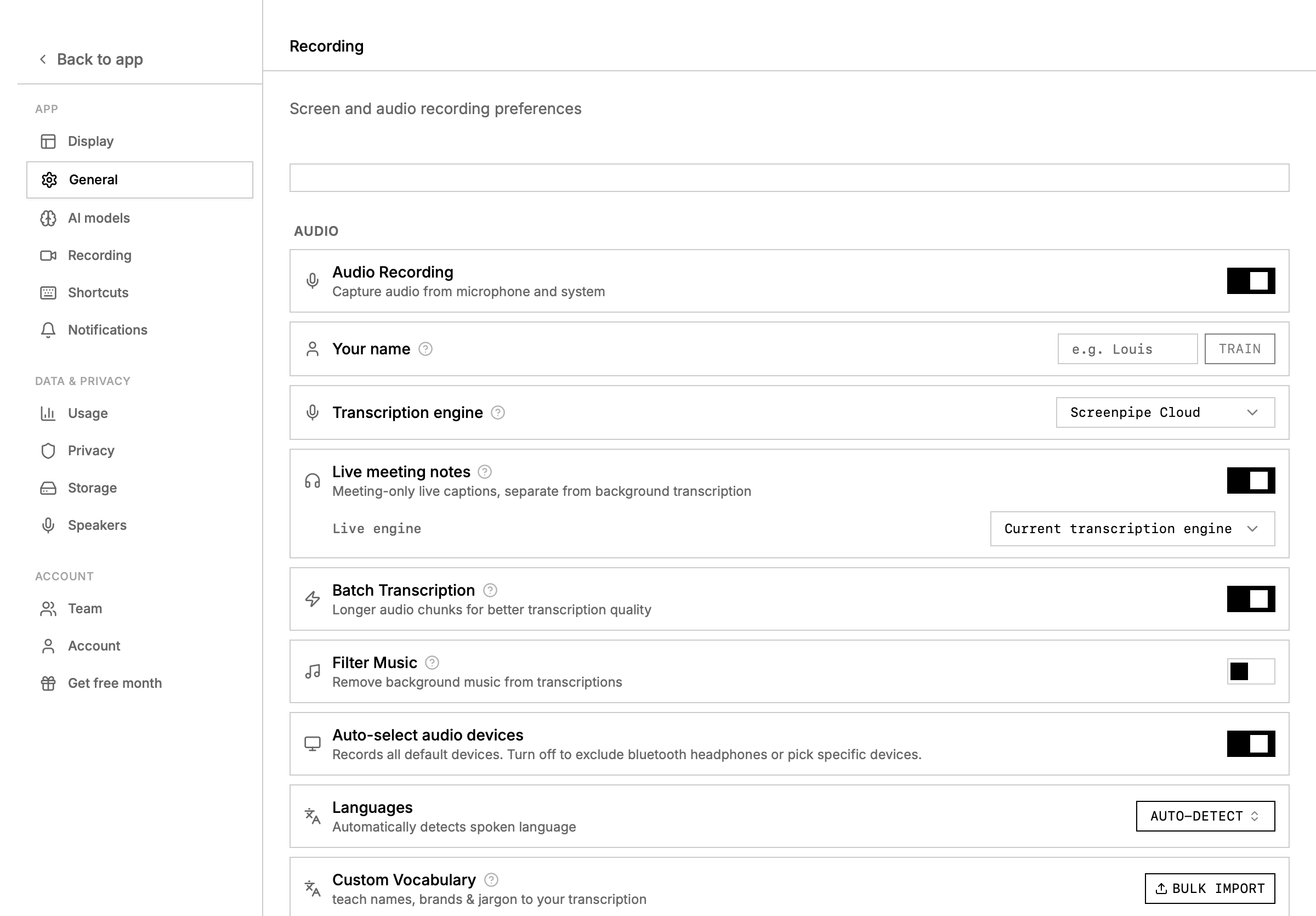
Open Settings → Recording. Select the needed microphone and system-audio devices, then record a short test. Obtain consent where required and follow the meeting’s recording policy.
2
Confirm the meeting exists
After the call, open the meeting or timeline. Check its start and end, transcript coverage, and whether screen context belongs to this meeting.
3
Fix important transcript errors
Correct names and merge or label speakers where useful. Do not “repair” missing audio by inventing what someone probably said.
4
Generate the structured notes
Ask for purpose, decisions, unresolved questions, objections, action items, owners, dates, and supporting transcript moments.
5
Compare with the transcript
Verify every commitment, owner, number, and deadline. Mark unclear items for confirmation.
6
Draft the follow-up
Create a concise email or message from the verified notes. Review tone, recipients, attachments, and promises before sending.
7
Update other systems separately
Only after review, copy the approved result into a CRM, ticket, project tracker, or shared notes system.
Notes prompt
Follow-up prompt
For deeper speaker, transcript, and calendar setup, see meeting intelligence and meeting transcription.